
ERP project reporting: an implementation walkthrough
This walkthrough shows the project reporting area of an ERP application supplied by Dyaus Techno Services. It brings report selection, project filters, team workload views and a budget analysis interface into one application. Screenshots show the working interface with confidential records and figures removed.
PUBLISHED ERP INTERFACE
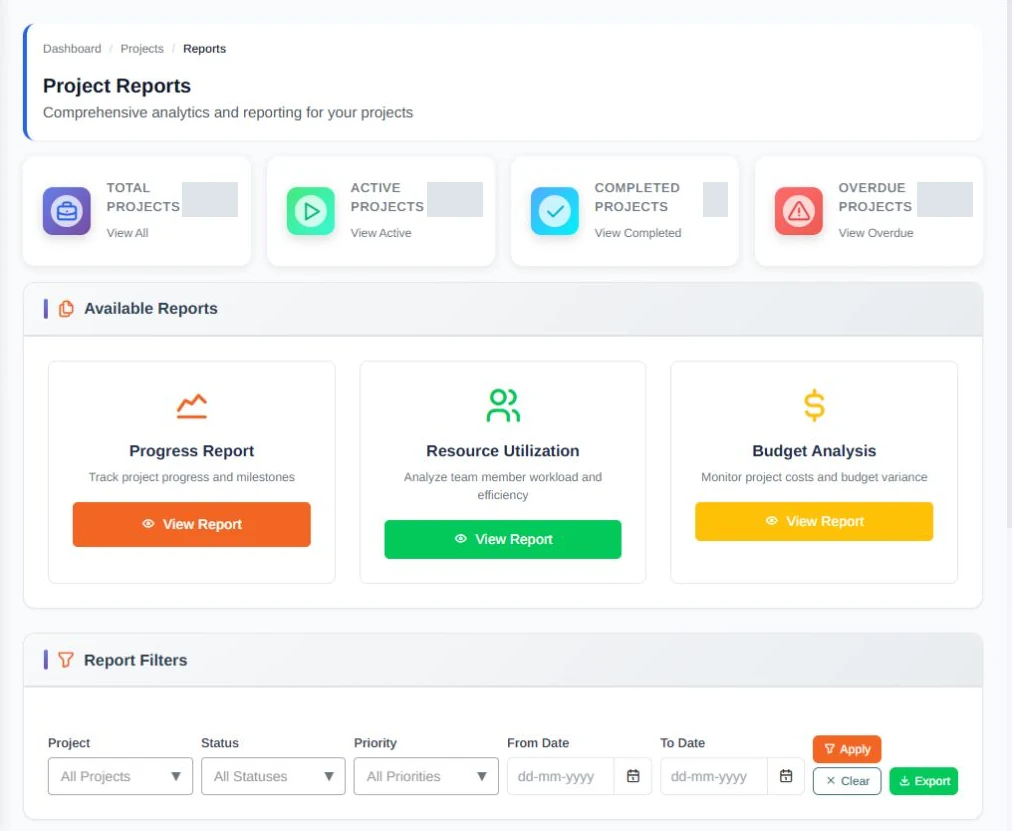
Project reporting overview. Confidential records and operational figures are removed.
What business need does project reporting address?
Project managers need a consistent way to inspect project status, task workload and budget information. A reporting area groups these views and provides controls for narrowing the information to a relevant project, period or team. The implementation shown here demonstrates those controls; its screens do not establish a measured improvement in cost, time or productivity.
1. A shared starting point for project reports
The report overview offers Progress Report, Resource Utilization and Budget Analysis views. Its filters include project, status, priority and date range, with apply, clear and export controls. This gives users a visible route from a report category to a more focused view.
Project reporting overview. Operational counts are hidden; report options and filters remain visible. Select the image to inspect the full view.
2. Team workload and resource utilization
The resource view includes organization, department, project and date filters. Its table identifies fields for active projects, total tasks, completed tasks and work in progress, alongside completion, workload, performance and allocation fields. Search and copy, spreadsheet, PDF and print controls are visible in the interface.
Employee names, email addresses, avatar initials, identifiers and operational figures are removed from the published capture. Export controls were observed; no confidential export was generated for this walkthrough.
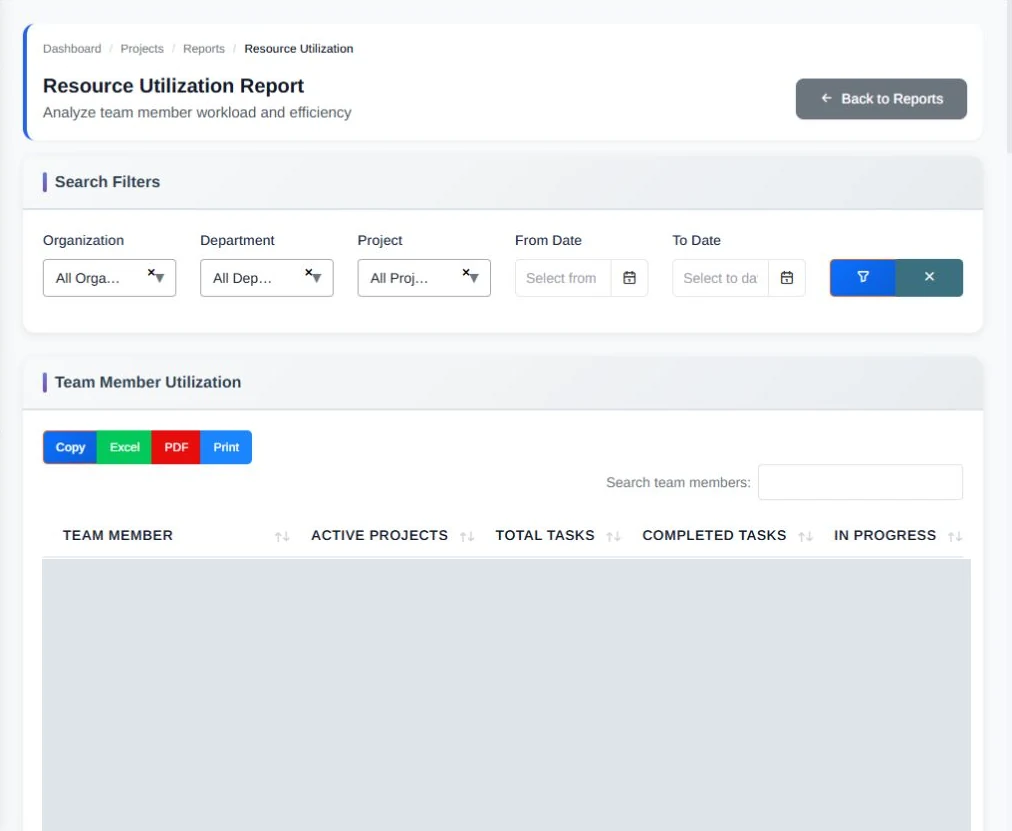
Resource utilization interface. Employee records and task figures are concealed. Select the image to inspect the full view.
3. Budget analysis interface
The budget view includes summary fields for budget, spending, remaining budget and utilization, plus project search, budget status and an expand control. The reviewed view returned an empty project list. This capture documents the interface and empty state; it does not demonstrate populated financial calculations or client results.
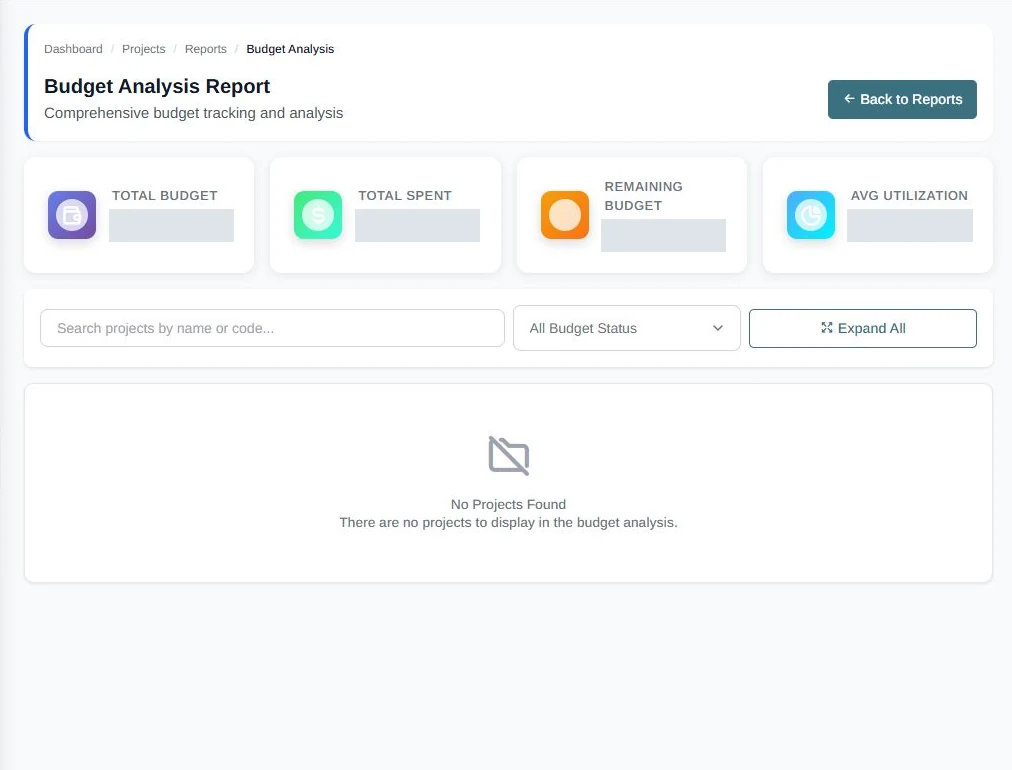
Budget analysis interface in its observed empty state. Financial fields are concealed. Select the image to inspect the full view.
What this implementation demonstrates
The reviewed project reporting area provides report navigation, project and date filters, a resource table and a budget view. Delivery duration, integrations, client identity and measured business outcomes are not published because those details have not been verified for this example.
VISIBLE IN THE PUBLISHED INTERFACE
Controls and reporting structure.
Report navigation, project and date filters, a resource table and a budget view.
NOT ESTABLISHED BY THE CAPTURES
Measured business outcomes.
The screens do not establish savings, productivity gains, delivery duration or a client endorsement.
Planning a reporting system for your business
Start with the decisions each report must support, the records it depends on, who may view or export them, and the checks needed before data is trusted. Agree field definitions, access roles, integration boundaries and acceptance criteria before implementation.
Explore our ERP and operational systems, system integration services and custom software development.
01
Field definitions
02
Access and export roles
03
Acceptance criteria
Common questions
Can an ERP report combine project and team information?
Yes. The reviewed resource utilization view includes organization, department and project filters with task and workload fields. Your required data sources and access rules must be agreed for a new implementation.
Are these screenshots client outcome evidence?
They demonstrate interface functionality. They do not establish savings, return on investment or a client endorsement. Confidential data has been removed.
Questions before you start
Which report fields need shared definitions?
Agree the meaning, source and owner of project, reporting period, status, resource allocation and budget fields before comparing reports. Document filters and calculation rules so two teams interpret the same value consistently.
Can a report combine project and team information?
The reviewed resource view includes organisation, department and project filters. New implementations require agreed data sources, field definitions and access rules.
What should we test before accepting a reporting system?
Compare report values with authorised source records, test filters and empty states, and verify that viewing and export permissions match the agreed roles.
Prepare your checklist
- Define the scope. Name the decisions each report must support. Define project, date, status and priority fields. Identify the owner and source of every reported value.
- Test representative cases. Agree filters and empty-state behaviour. Set role-based viewing and export permissions. Reconcile displayed counts and calculations to source records. Test team workload and allocation definitions.
- Record the decision. Test budget fields with representative approved data. Verify exports and confidential-data handling. Agree acceptance, deployment and ongoing support.
Related service: ERP reporting and operational systems ↗
Use the downloadable checklist to record scope, evidence and accountable owners.
References: Zoho CRM API documentation · Microsoft API design guidance
Prepared by Dyaus Techno Services. Practical guidance from our software, applied AI and infrastructure team. Updated 19 October 2026.
Discuss your reporting requirements
Share the reports, workflows and existing systems you need to connect.
Contact Email Dyaus or call Call Dyaus.